Recently, we help some of our customers to fix the service required of their Epson edible printers. Considering all our customers will face this issue someday, so we share our solution step by step. Under our guide, you can fix this issue within 5 minutes by yourself.
When the Epson edible printers show “Service required-Parts inside your printer are near the end of their service life”(As the photo). You don’t need to over worry about it and you don’t even have to replace any parts. You just need to reset the wasted ink pad counter, and then the Epson edible printers will be return normal again.

service required
If you see the service required someday, then you have to do the same as below.
Step 1, There is an Epson Adjustment program coming with the printer USB drive. Considering this program only works at Windows XP perfectly, so we have to use the compatibility mode in Windows 7,8,10 systems.
Step 2, Right-click “ APSPR1800_Ver10.exe”. Choose “Troubleshoot compatibility”

Troubleshoot compatibility
Step 3, Try recommended settings
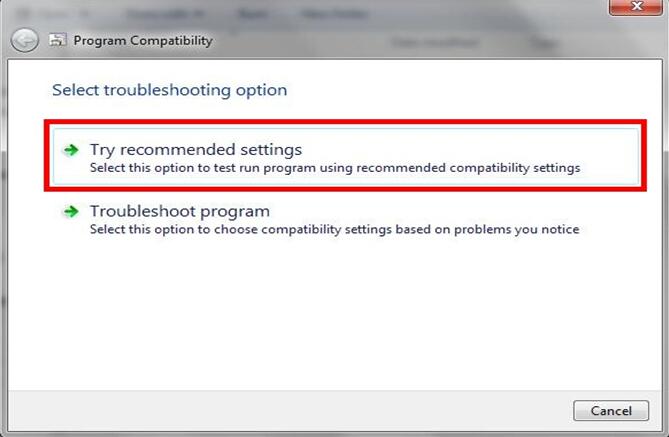
Try recommended settings
Step 4, Click “Start the program”.
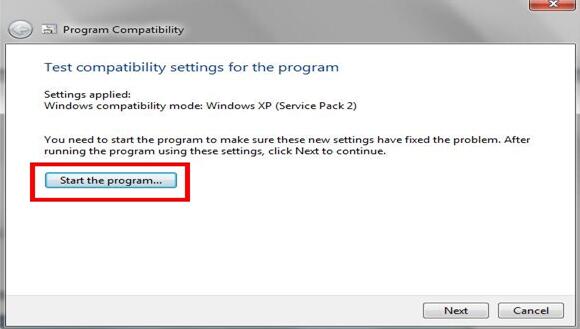
Start the program
Step 5, Click “Particular adjustment mode”

Particular adjustment mode
Step 6, Choose the USB port which is connected. In this case, the printer is connected to the Stylus Photo R1800.
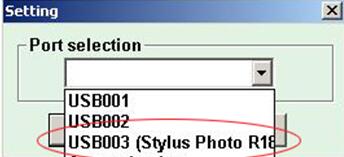
R1800
Step 7, And choose “Waste ink pad counter”

Waste ink pad counter
Step 8, Click “Initialization”, then the waste ink value will be 1777 points again.
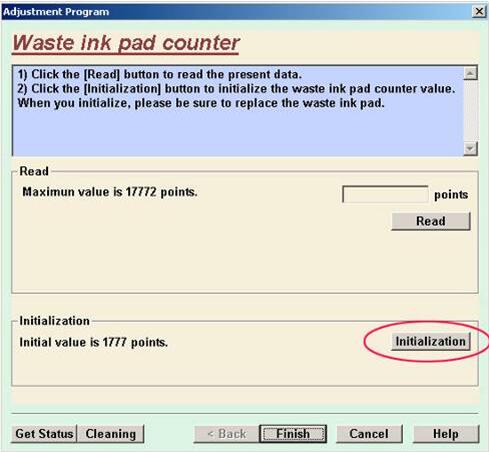
Initialization
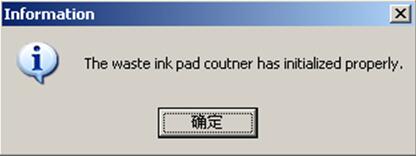
Step 9, If reset the waste ink successfully, this window will appear.
info
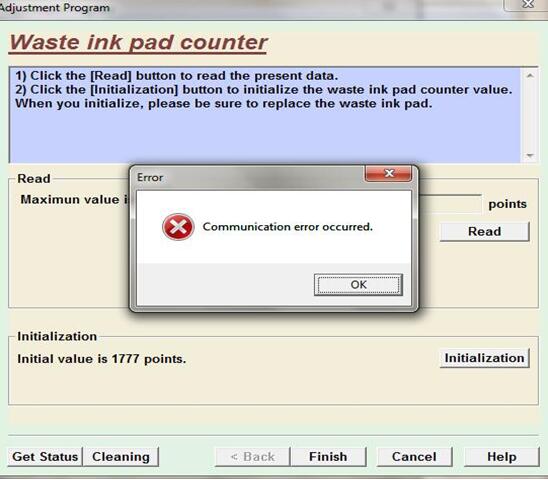
Step 10,If find the “Communication error” like below, please check Step 6 again. Make sure you choose the right USB port.
error
Step 11, Quit the program and restart your printer, the printer will return normal again.
If you still have any doubts about our guidance, you can follow our video step by step. Or we can help you to fix this issue by teamviewer.
